Search Itinerary
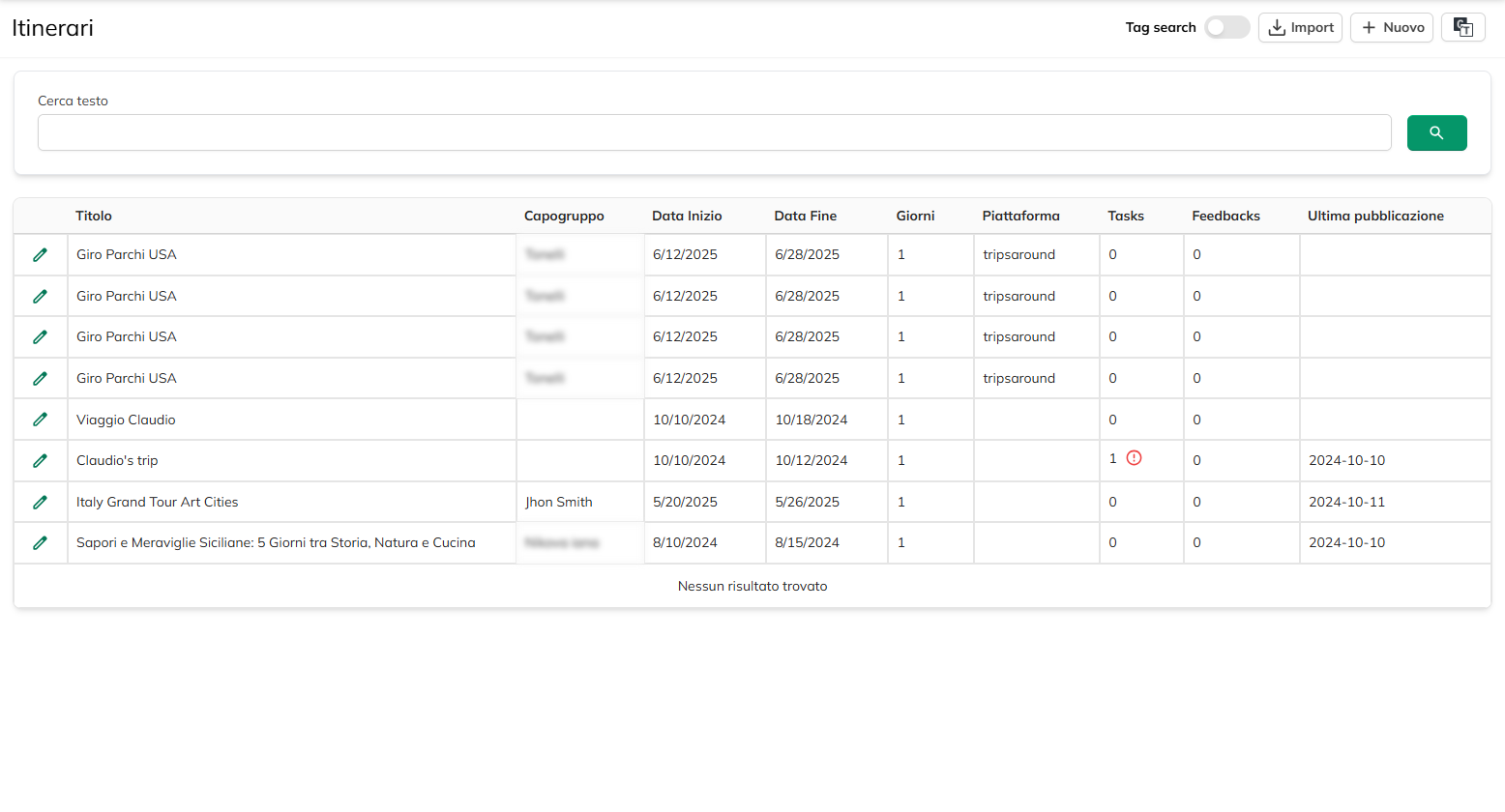
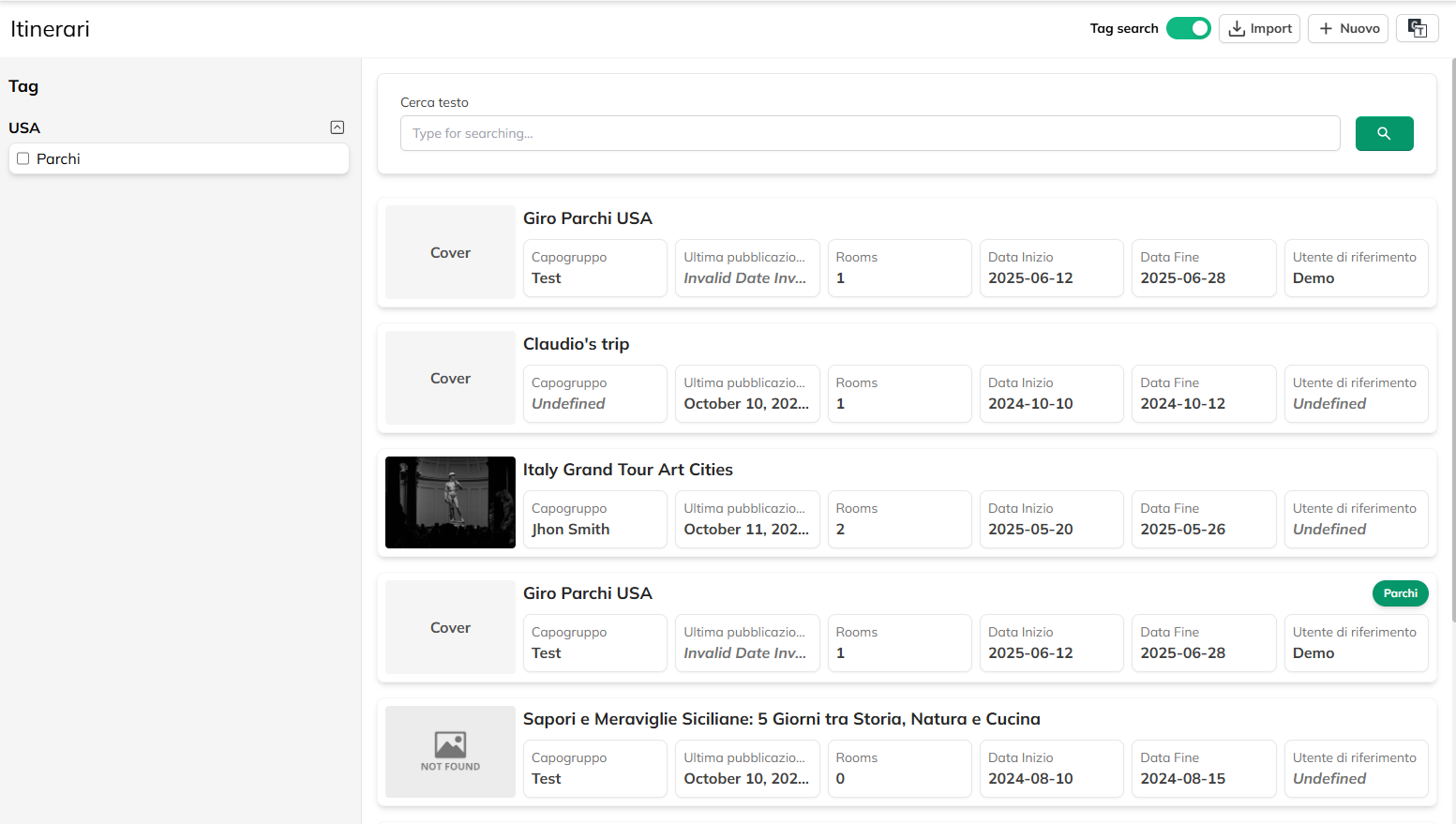
In the first mode, the key information (such as the title, parent, start/end dates, days, platform, tasks, feedback, and final publication) are presented in rows and columns; in the second mode, however, each route is displayed as a board, often accompanied by a cover image, from the dates of the beginning and the end, from the name of the person responsible, and any additional information such as “Rooms” or details of publication.
If you want to look for a route in particular, you can use the text field at the top of the screen.
Typing the word or phrase that you're interested in, the system will automatically filter the list by returning only the routes that are relevant.
If you have activated the “Tag search”, in that case, you may filter the list of tags, divided into categories in the sidebar by selecting one or more specific tags, so as to identify more quickly the project you have been looking for. Once you have updated the search criteria (text or tag), the list will be reduced in real-time, showing only the matching results.
To create a new route, click “New” to import routes from any external platforms connected, click on “Import”.